Friday, March 27, 2009

Protect USB From Virus

March 27, 2009 0
1. USB Disk Security


1. USB Disk Security provides 100% protection against any threats via USB drive, however, the majority of other products are unable even to guarantee 90% protection.
2. USB Disk Security is the best antivirus software to permanently protect offline computer without the need for signature updates, but other antivirus software should update signature database regularly, and they cannot effectively protect offline computer.
3. This light and easy to use solution is 100% compatible with all software and doesn't slow down your computer at all.
4. You pay USB Disk Security once and get it all, however, other antivirus products should be paid for updates every year.

Download Here

2. Prevent Virus Spreading From USB Disk


My PC usually gets infected with viruses whenever I plugin any of my friends Pen Drive. Here is a simple tool known as iKill which prevents the spreading of viruses from Pen Drive to your PC.

It works by scanning the drives for the presence of removable drives. If found, it parses the autorun.inf file for the executables it may run. If AutoProtect is enabled,it will automatically delete the files present on the drive. Otherwise, it will prompt you for your permission to delete the virus. Version 2 includes unspecified updates.
Download here

3. Autorun Eater


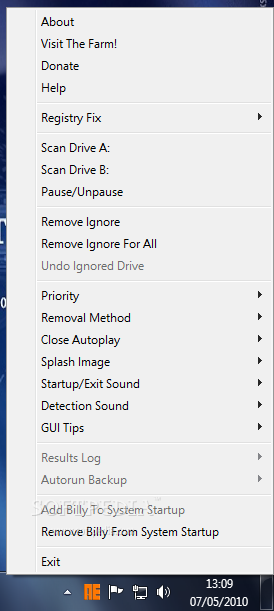
Autorun Eater was born due to increase of malwares using the 'autorun.inf' tactic to infect users unknowingly be it from flash drives, removable hard disks or any other removable storage device. When an infected device is infected with a malware and an 'autorun.inf' file is dropped, the shell menu is normally modified to execute the malware whenever the unsuspecting user double-clicks the infected drive.


Most anti-malware apps out there will almost instantly remove any malware detected but more often than not they leave the 'autorun.inf' file behind. And what if the anti-malware app fails to catch the malware? Here is when Autorun Eater comes in handy.

Autorun Eater will remove any suspicious 'autorun.inf' files even before the user attempts to access the drive. These files are auto-backup'ed in case of false positives.


Here are some key features of "Autorun Eater":

· Scan and remove suspicious Žautorun.infŽ files found in the root directory of all drives, C-Z, in real-time
· Scan priority(normal/high)
· Scan results are logged
· Add and remove from startup entry
· 3 optional registry fixes (Task Manager, Regedit & Folder options).
· Users are informed whenever a suspicious "autorun.inf" file is detected.
· Backup copies of suspicious "autorun.inf" file(s) are created before the original copy is removed for easy recovery.
· Status tooltip to get tool info easily without right-clicking on tray icon.

What's New in This Release:

· Added: 2 suspicious "autorun.inf" removal methods - "Ask For Confirmation" and "Auto-Remove".
· Added: Feature to view contents of suspicious 'autorun.inf' files in detection window.
· Added: Option to on or off startup/exit sound.
· Added: Option to on or off detection sound.
· Added: Option to enable or disable GUI Tips.
· Added: Option to ignore suspicious 'autorun.inf' files.
· Added: "Remove Ignore" option to undo previously ignored suspicious "autorun.inf" files.
· Changed: Detection window has evolved from a mundane message box to a cooler GUI window!
· Changed: Smaller memory footprint.
· Changed: Minor tweaks to the scanning engine.
· Changed: Minor tweaks to program behaviour.
· Changed: Minor improvements to installer.
· [Fixed]: Minor Scan Drive A: and B: issues.


Download Here


How To Make USB Boot / Flash Disk Bootable

March 27, 2009 0
How To Make USB Boot / Flash Disk Bootable
Creating a bootable USB Boot / Flash Disk Bootable
_________________________________________


Most of the motherboard and video card manufacturers nowadays offer Windows based software for flashing your hardware (updating BIOS), but it is well known, that flashing in DOS environment is way safer than in Windows.

In the old times there was no problem in creating a bootable device, since every computer had a floppy drive and Windows had a special option for creating a bootable floppy. Now we are living in a world of USB thumb drives and flashing your hardware from a bootable thumb drive is the easiest way. The only problem is making the USB drive bootable and aim of this guide is to learn you how to do it.Before we begin, you have to DOWNLOAD FILE IN END OF TOPIC extract it somewhere on your hard drive. After that just follow these steps:

  1. Run HP bootable media.exe and install it by following the pictures below.
  1. Once you have successfully installed the program, please run it (HP USB Disk Storage Format Tool - in Windows Vista you should click on it with right mouse button and select "Run as Administrator" to avoid any problems). There you have to tick "Quick format" and "Create DOS startup disk", selecting "using DOS files located at" like in the picture below. Click on the three dots button and guide the program to the location on your hard drive, where you have extracted *.zip archive. Select the "DOS files" folder and click OK. All you have to do now is click on "Start" button. Because you are formatting your USB thumb drive, program will warn you, that you are about to erase all data from it. By clicking "Yes", all the data on your thumb drive will be lost, so you better back it up before proceeding.

Dwnload File from Below Link

Dowload Here

Alternate All Boot File Is Here

Download Here

Internet Donwload Manager Full 5.15 Now Here

March 27, 2009 1
Internet Donwload Manager Full 5.15 Now Here
Internet Download Manager (IDM) is a tool to increase download speeds by up to 5 times, resume and schedule downloads. Comprehensive error recovery and resume capability will restart broken or interrupted downloads due to lost connections, network problems, computer shutdowns, or unexpected power outages. Simple graphic user interface makes IDM user friendly and easy to use.Internet Download Manager has a smart download logic accelerator that features intelligent dynamic file segmentation and safe multipart downloading technology to accelerate your downloads. Unlike other download managers and accelerators Internet Download Manager segments downloaded files dynamically during download process and reuses available connections without additional connect and login stages to achieve best acceleration performance.

Internet Download Manager supports proxy servers, ftp and http protocols, firewalls, redirects, cookies, authorization, MP3 audio and MPEG video content processing. IDM integrates seamlessly into Microsoft Internet Explorer, Netscape, MSN Explorer, AOL, Opera, Mozilla, Mozilla Firefox, Mozilla Firebird, Avant Browser, MyIE2, and all other popular browsers to automatically handle your downloads. You can also drag and drop files, or use Internet Download Manager from command line. Internet Download Manager can dial your modem at the set time, download the files you want, then hang up or even shut down your computer when it's done


Download Here


Monday, March 16, 2009

How to enable system restore Or If System Resotre is not available

March 16, 2009 1
How to enable system restore Or If  System Resotre is not available
If You Get This Error........
---------------------------------------
I discovered System Restore wasn't running. I tried the Control
Panel/System and clicked System Restore tab. It says:

An exception ocurred while trying to run
"C:\WINDOWS\system32\shell32.dll,Control_RunDLL"C:\WINDOWS\system32\sysdm.cpl",System"
(it really says sysdm.cpl not systm.cpl)

I tried doing Start/Run services.msc and double clicking the System
Restore item. It says:

Could not start the System Restore Service on Local Computer.
Error 21: The device is not ready.

Solution Is....
---------------------------------------

How to reinstall System Restore:

1. open your search tool

2. click 'advance options' (check the first 3 boxes)

3. type 'sr.inf' in search box, click 'search now'

4. right-click on 'sr.inf' & click 'Install'

5. insert the XP disk if asked

Thursday, March 12, 2009

How To Repair Window Xp Without Window CD

March 12, 2009 0
1. Copy the I386 folder from your windows xp cd to c:\ drive

2. Go to Start >> Run >> Run >> type Regedit Press Enter

3. Go to the follow locations.


HKEY_LOCAL_MACHINE\SOFTWARE\Microsoft\Windows\CurrentVersion\Setup\ServicePackSourcePath
HKEY_LOCAL_MACHINE\SOFTWARE\Microsoft\Windows\CurrentVersion\Setup\SourcePath


4. Change the path to wherever you copied the source files (I386 Folder) (Ex. C:\)

5. Then Close Regedit by click on cross.

6. Now Go to Start >> Run >> Run >> type CMD Press Enter

7. Run This command sfc /scannow .


8. Finally you can run sfc from your hard drive....

9. The window repair process work would be over on completion of process.


Revo Uninstaller All In One

March 12, 2009 1

You have easy and clear access to all properties of any installed application. This improves your knowledge about what is installed on your computer and also helps you comfortably and easily to uninstall applications.

If you can not uninstall certain application form Windows's Add/Remove applet because the installation is broken or uninstall command is broken Revo Uninstaller will scan for files, folders and registry keys related to that application so you can delete unnecessary files, folders and registry keys.

With "Search as you type" option you have a very quick way to find certain application which you want to uninstall.

You can browse the uninstall information of any application in the registry, open its install location, open support help and update links of the application or just search at Google for the name of the application or the name of its owner

In Hunter mode only by aiming icon on the desktop, quick launch toolbar, system tray or opened window you can uninstall, stop or delete applications with just one click. This can be very useful because a lot of applications are being loaded when Windows starts and for some of them you don't even know what they are - so, you can uninstall, stop, delete them or get information about them. Many of the started applications stay in the system tray without your agreement - so, again you can uninstall, stop, delete them or get information about them

In Drag and Drop mode with a single drag and drop of a shortcut to an application you can uninstall, stop or delete it. This is a very fast way to uninstall an application if your desktop is full of icons and you do not want to lose time browsing a long list of installed applications to find and uninstall them

If you manually delete files of an application or uninstall an application incorrectly, the information concerning that application will be shown by Add/Remove applet or other uninstall program. However, if you try to uninstall it properly it gives various types of errors. Using this tool, you can easily remove these invalid entries from the registry.

Download Here

How To Backup Already Install Driver

March 12, 2009 1
Double Driver is a very simple and useful tool which not only allows you to view all the drivers installed on your system but also allows you to backup, restore, save and print all chosen drivers simply and reliably.

Just select that driver which you want to backup and press backup button and select path where you want to save the driver.

Download here


How to repair when click any drive then open openwith option

March 12, 2009 0

Solution 1:
---------------------------------------------------------------

That's a virus named as ravmon.exe and autorun.inf
Scan Your Pc In Safe Mode with a anti virus tool i recommend

Download Here Kaspersky Virus Removal Tool

Then try this trick....

First show the hidden files and folders options then try this method

1. First Create a text document on your Desktop and copy and paste this matter in that text file.

@echo ++++++++++++++++++++++++++++++++
@echo off
@echo Build By Tips Guru
@echo off
@echo ++++++++++++++++++++++++++++++++
pause
del c:\autorun.inf /AARSH
del d:\autorun.inf
/AARSH
del e:\autorun.inf /AARSH
del f:\autorun.inf /AARSH
del g:\autorun.inf /AARSH
del h:\autorun.inf /AARSH
del i:\autorun.inf /AARSH


2. Then Go to file menu and Save As.. this text file to remove.bat

3. Double click on remove.bat and press any key to continue..

4. Finally you now u r virus free..

Solution 2:
---------------------------------------------------------------

To resolve this problem, edit the registry to set the value data for the Default string value in the registry keys that are described in the "Cause" section of this article to none:

1. Start Registry Editor (Regedt32.exe).

2. Locate and then click the Default value under the following keys in the registry if this problem occurs with folders:

HKEY_CLASSES_ROOT\Directory\shell

--> If this problem occurs with drives:


HKEY_CLASSES_ROOT\Drive\shell


3. Click Modify on the Edit menu.


4. Type 'none' in the Value data box, and then click OK.


5. Quit Registry Editor.


Tuesday, March 10, 2009

How To View Installed Drivers

March 10, 2009 0
How To View Installed Drivers
If you want to see a list of installed drivers, you can run the driverquery program

There are a lot of available switches to view different types of information.
On use can be to export to a CSV file for viewing in Excel


An example would then be:

Go >> Start >> Run >> Type CMD

use this command

Driverquery /v /fo csv > c:\drivers.csv


How To Remove Or Delete NewFolder.exe

March 10, 2009 0
How To Remove Or Delete NewFolder.exe

You can use use ComboFix utility for fix this Issue
Download Hare